
MFA & passkeys
niil supports several ways to prove who you are. Your organization decides whether a second factor is required; you decide whether to add a passkey.
Email one-time code (MFA)
When your organization enables login MFA, signing in with a password is followed by a 6-digit code sent to your email. Enter it to complete sign-in. The code is only ever delivered to your inbox — it's never shown in the browser.
Org admins turn this on under Organization → Security. It is on by default.
Passkeys (WebAuthn / FIDO2)
A passkey lets you sign in with your device's biometrics or PIN (Face ID, Touch ID, Windows Hello, a security key) — no password to type or phish.
Add a passkey from your profile:
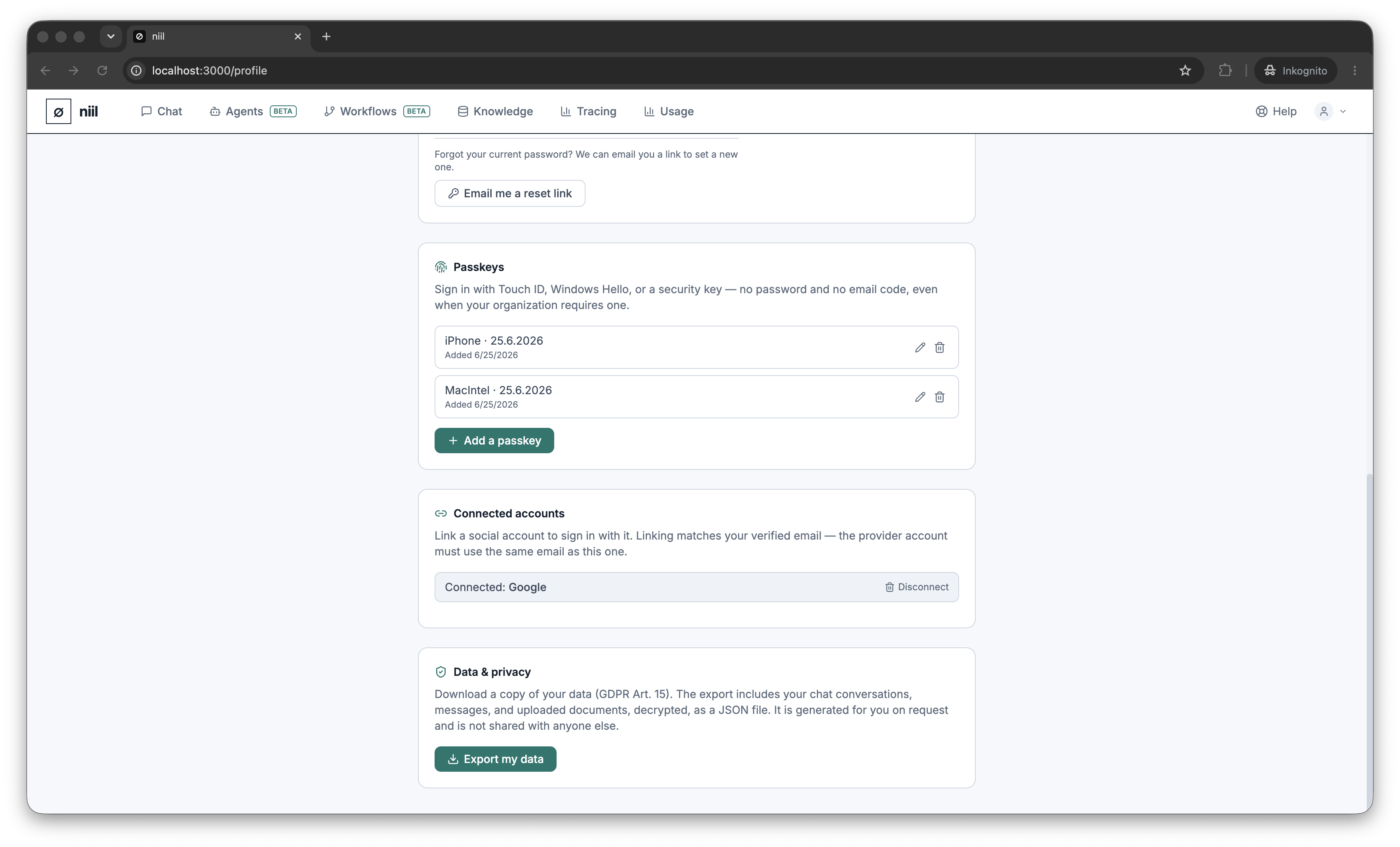
- Open Profile → Passkeys.
- Choose Add passkey and follow your device/browser prompt.
- Give it a recognizable name (e.g. "MacBook Touch ID").
Sign in with a passkey by choosing the passkey option on the sign-in screen and confirming on your device. Passkeys are discoverable, so you don't even need to type your email.
A passkey is itself a strong second factor
Signing in with a passkey satisfies multi-factor requirements on its own (possession of your device + biometric/PIN), so niil does not additionally ask for an email code on a passkey login. Keep at least one other sign-in method (password or social) as a backup before removing all passwords.
Social sign-in
If you signed up with Google, Microsoft or GitHub, that provider is your login. You can link or unlink providers in Profile → Connected accounts — as long as you keep at least one working way to sign in.